 Docmend
Add to Chrome
Docmend
Add to Chrome
Why does my Google Doc look different in Word, and how do I fix it?
A Google Doc usually changes in Word for three reasons. The fonts aren’t installed on the reader’s computer, so Word swaps them and the text reflows. The page size differs, typically US Letter against A4. And open comments and suggestions travel with the file as Word comments and tracked changes. Fix those three before you download the .docx and the document will look the same on the other side.
Cause 1: Fonts that Word doesn’t have
Google Docs offers hundreds of web fonts, such as Lato, Roboto and Open Sans. Most Windows and Mac computers don’t have them installed. When Word can’t find a font it substitutes another one with different letter widths, so lines break in new places and pages gain or lose a few lines.
Fix: before you export, switch to fonts that ship with Microsoft Office, for example Arial, Calibri, Times New Roman, Georgia or Verdana. Change it in the paragraph styles so headings and body text update together.
Cause 2: Page size and margins
A Doc created in the United States is usually US Letter. Most other countries print on A4, which is narrower and taller. The same text flows differently on each, and tables or images sized to the edge can spill over.
Fix: open File → Page setup and set the paper size your reader uses before you download.
Cause 3: Comments and suggestions that come along
When you download as Word, open comments become Word comments and suggested edits become tracked changes. Your client then opens a file full of red marks and side notes that were meant for your team.
Fix: resolve the comments you don’t want to share, and accept or reject every suggestion. Tools → Review suggested edits lets you accept all at once.
Cause 4: Very large images
Full-resolution photos make the Word file heavy, slow to open and sometimes too big to email. Resize them in the Doc, or compress the pictures in Word after downloading.
A quicker check with Docmend
- Open the Doc, click the Docmend icon, pick Use a Google Doc, and choose Send as Word.
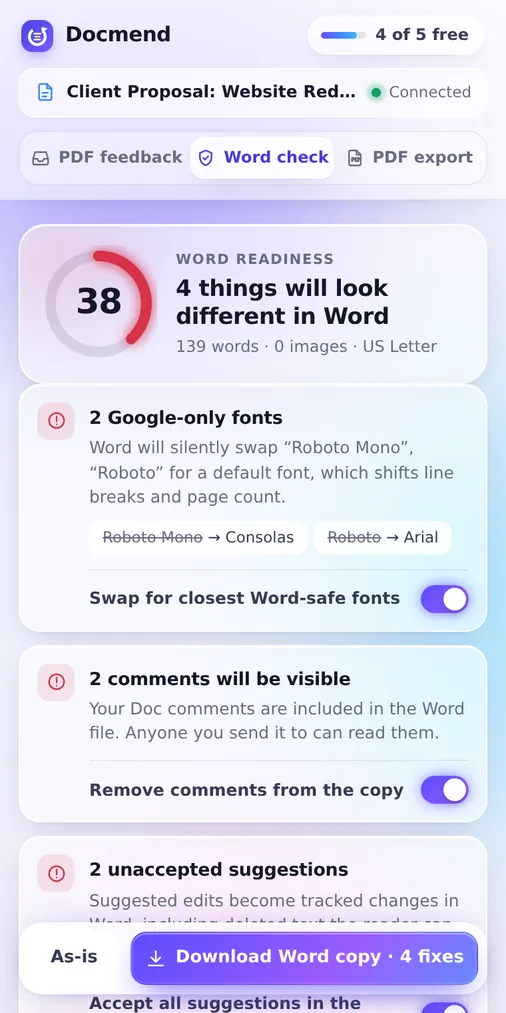
- Docmend gives the document a Word readiness score and lists what will look different: missing fonts, leftover comments, unresolved suggestions, paper size and oversized images.
- Tick the fixes you want and click Download Word copy.
You get a clean .docx with the fixes applied. Your Google Doc itself is not changed. The check is free and unlimited, and it also works on a Word file you upload.
Checklist before you send a Word copy
| Check | Where in Google Docs |
|---|---|
| Fonts exist in Office | Font menu, or paragraph styles |
| Paper size matches the reader | File → Page setup |
| Comments resolved | Comment history icon, top right |
| Suggestions accepted or rejected | Tools → Review suggested edits |
| Images a sensible size | Click the image → Image options |
Common questions
Will the Word file ever be identical to the Doc?
Close, but not always pixel for pixel. Word and Google Docs use different layout engines, so spacing can differ slightly even with the same fonts. Fixing fonts, page size and markup removes the differences people notice.
Is it better to send a PDF?
If the reader only needs to read or sign, yes: a PDF looks the same everywhere. Send Word when they need to edit the text.
Does Docmend change my original Doc?
No. The fixes are applied to the downloaded Word copy only.