 Docmend
Add to Chrome
Docmend
Add to Chrome
How to turn PDF comments into Google Docs comments
Google Docs has no feature that imports PDF highlights or sticky notes as comments. If you open a PDF with Docs, the text is converted and the annotations are dropped. You can retype the notes by hand, paste a comment summary exported from your PDF app, or use the Docmend Chrome extension, which reads the PDF’s annotations and adds each one as a comment on the matching text in your Doc.
Why can’t Google Docs read PDF comments?
A PDF stores highlights, strike-outs and sticky notes as a separate layer called annotations. When you choose Open with → Google Docs on a PDF in Drive, Docs converts the page text into an editable document and ignores that layer. The reviewer’s notes stay behind in the PDF.
That leaves you with a document in one window and feedback in another. The three methods below close that gap.
Method 1: Copy the notes by hand
- Open the PDF and your Google Doc side by side.
- In the PDF, open the comments list. In Adobe Acrobat it is the Comments panel. In Mac Preview it is View → Highlights and Notes.
- For each note, find the same sentence in the Doc, select it, and press Ctrl + Alt + M (⌘ + Option + M on Mac) to add a comment.
- Type or paste the reviewer’s note and post it.
This works for a handful of notes. With thirty or more it is slow, and it is easy to skip one.
Method 2: Export a comment summary and paste it
- In Adobe Acrobat, open the Comments panel and choose Options (…) → Create Comment Summary.
- Acrobat produces a list of every comment with its page number.
- Paste that list at the end of your Google Doc, or keep it open as a checklist.
You get every note in one place, but none of them is attached to the text it refers to. You still have to find each sentence yourself. Preview and most browser PDF viewers have no export like this.
Method 3: Import them with Docmend
- Open your Google Doc, click the Docmend icon in Chrome, and pick Use a Google Doc.
- Choose Import PDF notes and drop in the marked-up PDF.
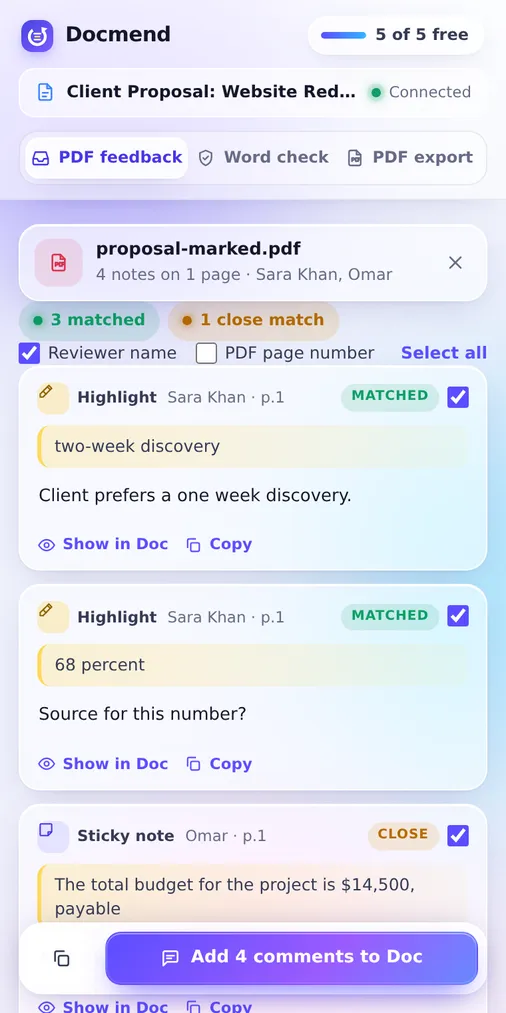
- Docmend reads the highlights, strike-outs and sticky notes, then matches each one to the same words in your Doc.
- Review the list, untick anything you don’t want, and click Add comments to Doc.
Each note becomes a real Google Docs comment, anchored to the right text, with the reviewer’s name. The PDF is read on your own computer and is not uploaded.
Which method should you use?
| Method | Notes attached to the text | Effort | Cost |
|---|---|---|---|
| Copy by hand | Yes | High, grows with every note | Free |
| Comment summary | No | Low to export, high to place | Needs Acrobat |
| Docmend | Yes | Low, a few clicks | Free, no limits |
One thing to check with any method: the reviewer must save the PDF after marking it up. “Print to PDF” flattens the notes into the page, and after that no tool can read them as comments.
Got a scan or a photo of paper notes instead? It has no annotations to import, but OCR PDF can get the text out of a scanned PDF.
Can’t select the text at all? See why you can’t select text in a PDF and how to fix it.
Need the notes on paper or in a list instead? See how to export or print PDF comments.
Common questions
Which PDF apps does this work with?
Any app that saves standard PDF annotations: Adobe Acrobat and Reader, Mac Preview, Microsoft Edge, Foxit, Xodo, and most iPad markup apps. Scans and photos of paper contain no annotations to read.
What if the text changed since the PDF was made?
Docmend marks each note as matched, close match, or not found. Close matches are placed on the nearest text. Notes that no longer have a home are listed so you can copy them.
Does my PDF get uploaded anywhere?
No. Docmend reads the PDF inside your browser. Nothing is sent to a server when you import notes.