 Docmend
Add to Chrome
Docmend
Add to Chrome
How to save a Google Doc as a PDF with comments
Google Docs does not include comments when you download a PDF or print. A common workaround is to download the Doc as a Word file, open it in Microsoft Word, and print it with Print Markup to a PDF; Google’s help doesn’t say whether comments carry over in the download, so check the file first. If you don’t have Word, the Docmend extension creates the PDF directly from the Doc, with comments in the margin or as a numbered list at the end.
Why are comments missing from the PDF?
File → Download → PDF document and File → Print both output the document body only. Comments, replies and suggestions live in a side panel that isn’t part of the page, so they are left out. There is no setting in Google Docs that turns them on.
Method 1: Go through Microsoft Word
- In the Doc, choose File → Download → Microsoft Word (.docx). Google’s help doesn’t say whether comments come across, so check that they appear in Word before you print.
- Open the file in Word. If you see a yellow bar, click Enable Editing.
- Choose File → Print, and under Settings make sure Print Markup is ticked.
- Pick Microsoft Print to PDF as the printer, or use File → Export → Create PDF.
If the comments came across, Word prints them in the right margin. You need a copy of Word, and fonts or spacing can shift on the way. Our guide on why a Google Doc looks different in Word explains what changes.
Method 2: Screenshot the comments
For a page or two, you can open the comments panel, take screenshots, and combine them into a PDF. The text isn’t selectable and long documents take a lot of images, so this only suits very short reviews.
Method 3: Create the PDF with Docmend
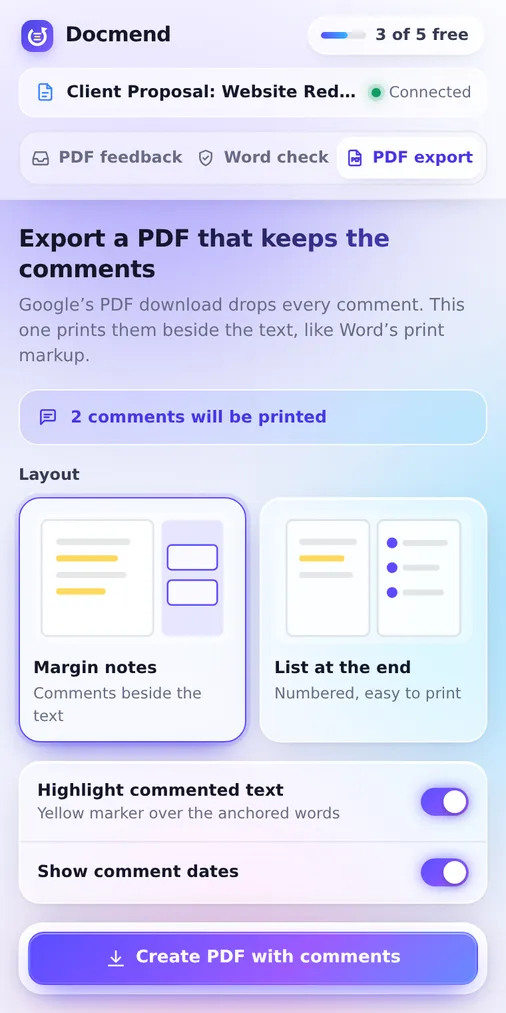
- Open the Doc, click the Docmend icon, pick Use a Google Doc, and choose Save as PDF.
- Pick a layout: Margin notes puts each comment beside the text it refers to, and List at the end numbers them on a final page.
- Choose whether to highlight the commented text and show dates.
- Click Create PDF with comments.
The page content is Google’s own PDF export, so the document looks exactly as it does in Docs. Docmend adds the comments and replies around it. Everything runs in your browser.
How do the methods compare?
| Method | Needs other software | Layout stays the same | Replies included |
|---|---|---|---|
| Through Word | Yes, Microsoft Word | Can shift | Only if the comments carry over |
| Screenshots | No | Images only | Only what is on screen |
| Docmend | No | Yes | Yes |
Common questions
Do I need Microsoft Word installed?
No. Docmend builds the PDF in your browser from Google’s own PDF export and the Doc’s comments, so Word isn’t involved.
Can I add a signature to the same PDF?
Yes, on the Pro plan. You can add your own signature, and include signatures your clients left through a review link.
Does the PDF have a Docmend watermark?
On the free plan a small “Comments added with Docmend” footer is added. Pro removes it.
Sources
- Microsoft Support: Print a document in Word (Print Markup)
- Azusa Pacific University Libraries: How do I print a Google Doc with comments?