 Docmend
Add to Chrome
Docmend
Add to Chrome
How to get a Google Doc signed by a client
Google Docs has a built-in eSignature tool, but Google lists it as available only to Workspace Individual accounts and certain Workspace plans, not to free personal accounts. If you don’t have it, you can download the Doc as a PDF and have your client sign it in a PDF app, use a dedicated signing service, or use Docmend’s Send for signature, where the client signs from a link and the signed PDF is emailed to both of you.
Option 1: Google’s built-in eSignature
If your account has it, open the Doc and choose Tools → eSignature. You add signature, initials, name and date fields, then request signatures by email.
Google’s help page lists eSignature as available to Workspace Individual accounts and to plans including Business Standard and Plus, the Enterprise editions and Education Plus, when the administrator enables it. A request can have up to 10 signers. If you don’t see the menu item, your account type doesn’t include it.
Option 2: Download a PDF and sign it in a PDF app
- In the Doc, choose File → Download → PDF document.
- Email the PDF to your client.
- They open it in Adobe Acrobat Reader and use Fill & Sign, or in Mac Preview with Tools → Annotate → Signature, then send it back.
It is free and works everywhere. It also depends on your client knowing how to sign a PDF and remembering to return it.
Option 3: A dedicated e-signature service
Services built for contracts add identity checks, detailed audit trails and legal compliance features. For agreements where those matter, such as employment contracts or regulated documents, a dedicated service is the right tool. They usually charge per user per month.
Option 4: Send for signature with Docmend
- Open the Doc, click the Docmend icon, pick Use a Google Doc, and choose Send for signature.
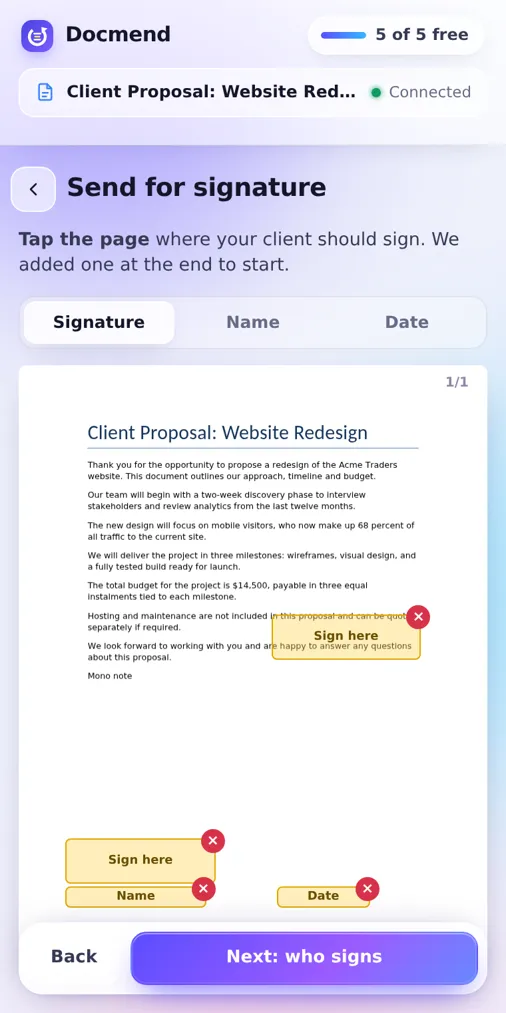
- Docmend turns the Doc into a PDF. Tap the page where your client should sign. You can also add name and date boxes.
- Enter your client’s email, or copy the signing link and send it yourself.
- Your client opens the link, draws or types a signature, and clicks Finish. They need no account.
- The signed PDF is emailed to you and to your client, with a signing certificate as the last page.
Docmend adds a simple electronic signature: the signer’s drawn or typed signature, their name, the date, and a certificate recording when the document was opened and signed. This level of signature is commonly used for proposals, quotes and approvals.
Docmend’s free plan includes 10 signature requests a month. Pro, at $4 a month, makes them unlimited.
Which option fits which document?
| Option | Works on free Google accounts | Client needs an account | Best for |
|---|---|---|---|
| Google eSignature | No | No | Teams already on an eligible Workspace plan |
| PDF app | Yes | No | One-off documents, patient clients |
| Dedicated service | Yes | No | Contracts that need a full audit trail |
| Docmend | Yes | No | Proposals, quotes and approvals |
Common questions
Is a signature made this way legally valid?
Simple electronic signatures are accepted for many everyday agreements in most countries, but the rules depend on the document and the jurisdiction. For contracts that need a certified or qualified signature, use a dedicated signing service or ask a lawyer.
Can I send a PDF for signature, not only a Google Doc?
Yes. In Docmend you can upload a PDF from your computer or open one from a link, place the signature boxes, and send it the same way.
How do I get the signed copy back?
It is emailed to you as soon as your client clicks Finish, and it also appears in Docmend under Send for signature with a download button.