 Docmend
Add to Chrome
Docmend
Add to Chrome
How to get client feedback on a document
Share one copy instead of sending attachments, ask people to comment on the exact words, set one deadline, and collect every note in one place. The right free method depends on the file type and on whether your client has a Google account. A review link works for Google Docs, PDFs and Word files alike.
Before you send: set up the review so feedback is usable
Most messy feedback rounds go wrong before the client opens the file. Five minutes of setup saves a week of “see attached, v3 final”.
Say what you want feedback on
Tell the client what to look at and what is already decided. “Please check the scope and the timeline in section 2; the pricing is agreed” gets you focused notes. “Thoughts?” gets you opinions on the font.
One deadline and one round
Give a date and say it is one round: everyone comments by Friday, you make the changes, and you send a clean version. Open-ended reviews drift, and late notes arrive after you have already moved on.
Ask for comments on the specific words
Ask reviewers to highlight the sentence they mean and comment there, not to reply by email. “Change the second paragraph” is ambiguous once the paragraphs move. A comment pinned to the words is not.
Google Docs
The free method is to click Share and give your client Commenter access. They can then select text and add comments, and you reply and resolve them in the Doc.
The catch: Google Docs asks people to sign in to a Google account before they can comment, even when the link is set to “Anyone with the link can comment”. If your client doesn’t use Google, you can ask them to create a Google account with their existing email, use visitor sharing if your organisation is on Workspace, send a PDF or Word copy, or share a Docmend review link. On a review link, anyone can highlight text and leave notes with just their name, and one click adds those notes to your Doc as real comments on the same words.
Full steps: how to let someone comment on a Google Doc without a Google account.
See also: how to track changes in Google Docs with Suggesting mode, when your reviewer has a Google account.
PDFs
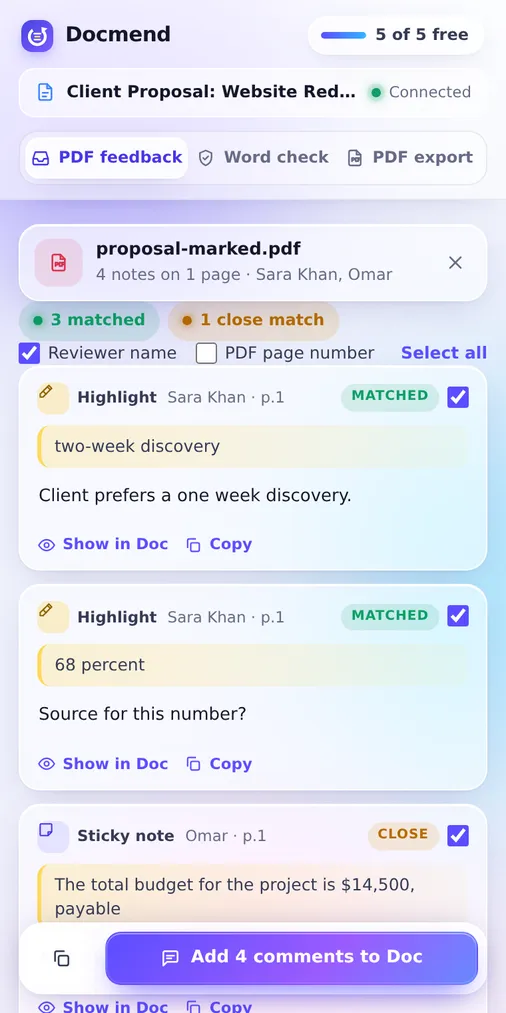
For a PDF, there are two free routes. You can upload it to Google Drive and share it with Commenter access; reviewers need a Google account, and the comments stay in Drive rather than in the PDF file. Or you can email the PDF and let the client mark it up in their own PDF app, such as Acrobat Reader, Preview or Edge, and send it back. A Docmend review link is a third option: reviewers select the words they mean and leave a note with just their name, and you download your original PDF with each note added as a standard PDF comment.
Full steps: how to collect comments on a PDF with a link.
When the client sends back a marked-up PDF
If you work in Google Docs, you now have notes in one file and your text in another. Our guide on turning PDF comments into Google Docs comments covers three ways to bring them across, and which PDF apps’ notes import into Google Docs lists the apps that save standard annotations. Ask the client to save the PDF after marking it up, not “Print to PDF”, which flattens notes into the page.
When the client only has a phone
Marking up a PDF on a phone is fiddly in most apps. A Docmend review link is a normal web page and works in mobile browsers, so the client can select text and leave a note from their phone. See can a client leave PDF comments from a phone.
Word files
The free method is Word’s own review tools. On the Review tab, turn on Track Changes and ask the client to add comments; you then accept or reject each change. It works well when both sides use Word. It does mean your client needs Word or another app that opens .docx files.
If they don’t have Word, upload the .docx file in Docmend and send a review link. The reviewer opens it in any browser, highlights text and leaves notes, with no Microsoft account and nothing to install. See can someone comment on a Word document without Microsoft Word.
Writing in Google Docs but delivering a Word file? Check why a Google Doc can look different in Word before you send, so the client reviews the same layout you see.
Video walkthroughs and designs
Some drafts are easier to explain than to annotate: a design, a website, a slide deck with a story. A short screen recording where you talk the client through it, with comments pinned to the exact second, often gets sharper feedback than a written brief. A free online screen recorder lets you do that without installing anything.
Docmend Video records your screen or camera with your voice in the browser. You share one link; viewers comment on the moment they mean or reply with a video of their own. Neither you nor your viewers need an account. Free recordings are up to 45 seconds, with 10 comments per video, and shared links are kept for 30 days. Docmend Pro ($4 a month) records up to 10 minutes with unlimited comments and keeps links for a year.
Collecting feedback from several people
When a proposal goes to a founder, a marketing lead and a finance contact, the problem is no longer getting comments. It is getting three sets of comments that agree.
- Share one copy, not three attachments. Everyone comments on the same file and sees each other’s notes, so the second reviewer doesn’t repeat the first.
- Make sure every note has a name. Google Docs comments show the commenter’s account, and on a Docmend review link each reviewer types their name once, so every note carries it. See does my name show on the notes I leave on a review link.
- Resolve conflicts in one place. When two notes disagree, reply in the comment thread with the decision and the reason, then resolve it. Ask the client to name one person who has the final say.
- Close the round. Once the deadline passes, close the link to new notes, make the changes and send a clean version.
Want to show what changed between rounds? Compare PDF highlights every word added or removed between two versions of a PDF.
To keep a record of the round, save the Doc as a PDF that keeps the comments. Our guide on how to save a Google Doc as a PDF with comments covers three ways. And once the document is approved, the next step is usually a signature: see how to get a Google Doc signed by a client.
Next: get sign-off. When the client is happy with the final version, see how to get a client sign-off, with a copy-paste sign-off form and three ways to get it approved.
Which method fits which file?
| File type | Free method | Reviewer needs an account? | Where comments end up | Full guide |
|---|---|---|---|---|
| Google Doc | Share with Commenter access | Yes, Google | In the Doc | Comment without a Google account |
| Google Drive (Commenter) or the client’s PDF app | Drive: yes, Google. PDF app: no | Drive: in Drive, not in the file. PDF app: in the returned PDF | Collect comments on a PDF | |
| Word file | Track Changes and comments in Word | No, but they need an app that opens Word files | In the returned .docx | Comment without Word |
| Video walkthrough | Docmend Video | No | On the video, at the exact second | Docmend Video |
| Any of the above | Docmend review link | No, just a name | Google Doc: as comments in your Doc. PDF: as PDF comments in a download | How a review link works |
Common questions
Can a reviewer edit my file from the link?
No. A Docmend review link shows a read-only copy, so reviewers can’t change your document. They can highlight text, leave notes, and approve or sign. Your original Doc changes only when you add their notes. More in can a reviewer edit my file from a comment link.
Does the reviewer have to install anything?
No. The review link opens as a normal web page on a computer or phone. The reviewer selects text and leaves a note, typing their name once. Only the person who owns the document needs the extension. See does the reviewer have to install anything.
Does my Google Drive have to be connected?
No. The Docmend Chrome extension does not ask for Google Drive access, and there is no Google permission screen. It uses the Doc open in your tab and the sign-in you already have. See do I need to give Docmend access to my Google Drive.
Sources
- Google Docs Editors Help: Share files from Google Drive, checked 2026-10-15
- Google Docs Editors Help: Use comments, action items and emoji reactions, checked 2026-10-15
- Microsoft Support: Track changes in Word, checked 2026-10-15
- Docmend pricing