 Docmend
Add to Chrome
Docmend
Add to Chrome
How to get someone to sign a document online for free
Turn the document into a PDF first. Then pick one of three routes: email the PDF and have the other person sign it in a free PDF reader they already have, send a signing link they open in any browser, or use a dedicated e-signature service when the contract needs identity checks and a full audit trail.
Before you send: turn the document into a PDF
A PDF keeps its layout on every screen. Fonts, page breaks and the spot where the signature goes stay exactly where you put them, whether the other person opens it on a phone, a Mac or a Windows laptop. Word files and Google Docs can reflow on someone else’s device, and a signature line that drifts onto the next page is the last thing you want.
From Word or Google Docs
- Google Docs: choose File → Download → PDF document.
- Microsoft Word: choose File → Save As (or Save a Copy), then pick PDF as the file format.
- No Word on this computer? Docmend’s Word to PDF tool is one more option.
See also: how to sign a Word document electronically, including signing it yourself in Word.
Mark where they should sign
Before you export, add a clear line such as “Sign here:” with space below it, plus a line for the printed name and the date. A highlighted box works too. If you use a signing link instead, you place the signature, name and date boxes on the page in the next step, so you can skip this.
Method 1: Email the PDF and let them sign it in a free reader
This costs nothing and needs no new software on your side. Attach the PDF to an email, say where to sign, and ask the person to send the signed copy back. Most people already have something that can sign a PDF:
- Google Chrome: Chrome’s built-in PDF viewer can “fill out and sign paperwork”. Open the PDF in Chrome, select Draw, pick the pen, and draw the signature with the mouse or touchpad. Then download the signed copy.
- Mac Preview: open the PDF, show the Markup toolbar and click the Sign button (or choose Tools → Annotate → Signature). Preview can capture a signature from the trackpad, the Mac’s camera, or an iPhone or iPad.
- Adobe Acrobat Reader: open the PDF and use the signing tool (Fill & Sign, shown as E-Sign in newer versions) to add a signature or initials.
It is free and works almost anywhere. The catch is that it depends on the other person knowing how to sign a PDF and remembering to send it back. You also get no record of when the document was opened or signed, so if it goes quiet, you only find out by asking. Signing a PDF yourself? See how to sign a PDF without Adobe. Want your drawn or typed signature as an image? Docmend’s Signature maker downloads it as a see-through PNG.
Method 2: Send a signing link they can open on any phone or laptop
What a signing link does
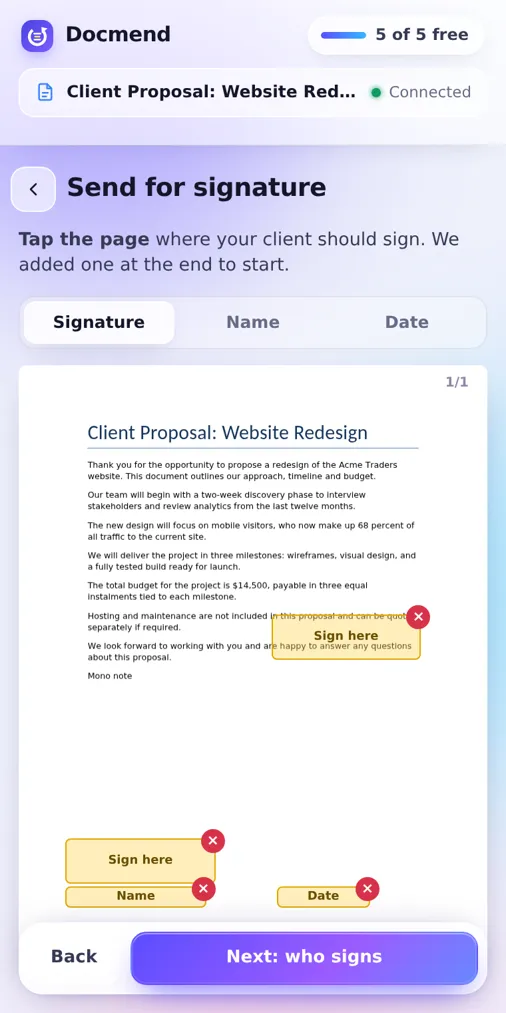
Instead of an attachment, the other person gets a link. They open it in their browser, draw or type a signature, and click Finish. There is no account to create and no app to install, and the signed file comes back to you on its own. This is how Send for signature works in the Docmend Chrome extension. The free plan includes 10 signature requests a month; Pro ($4 a month) makes them unlimited.
With Docmend, step by step
- Click the Docmend icon in Chrome and upload the PDF from your computer, or open a Google Doc and choose Send for signature. Docmend turns the Doc into a PDF.
- Tap the page where your client should sign. You can also add name and date boxes.
- Enter your client’s email, or copy the signing link and send it yourself.
- Your client opens the link on a phone or laptop, draws or types a signature, and clicks Finish. They need no account.
- The signed PDF is emailed to you and to your client, with a signing certificate as the last page.
While you wait, Docmend shows who has opened and signed the document, and you can send a reminder. A copy of the PDF is uploaded so the link can be opened, and you can delete it. Signature requests work for PDFs and Google Docs, so turn a Word file into a PDF first. For more on the recipient’s side, see how a client can sign a PDF without creating an account, and how both sides get the signed PDF.
Starting from a Google Doc? Google Docs also has its own eSignature tool on some Workspace plans. Our guide on how to get a Google Doc signed by a client covers it.
Method 3: A dedicated e-signature service, when the document needs more
Services built for contracts add identity checks, detailed audit trails and legal compliance features. For agreements where those matter, such as employment contracts or regulated documents, a dedicated service is the right tool.
For side-by-side comparisons, see Docmend vs Docusign, Docmend vs Dropbox Sign and Docmend vs SignWell.
Which method should you use?
| Method | Signer needs an account | You get a record of signing | Signed copy comes back | Best for |
|---|---|---|---|---|
| Email a PDF, sign in a reader | No | No | Only if they email it back | One-off documents, patient clients |
| Docmend signing link | No | Yes, a signing certificate | Emailed to you both | Proposals, quotes and approvals |
| Dedicated service | No | Yes, a detailed audit trail | Through the service | Contracts that need a full audit trail |
A simple rule: if the document is a proposal, a quote or a sign-off, a PDF reader or a signing link is enough. If someone might later dispute who signed, or the document is regulated, use a dedicated service.
Is an electronic signature legally valid?
Simple electronic signatures are commonly used for proposals, quotes and approvals, but validity depends on the document and the jurisdiction. If you are unsure, ask a lawyer before you send. Our answer on whether an electronic signature on a PDF is legally valid explains what each level of signature includes.
Docmend provides simple electronic signatures (drawn or typed signature, name, date, signing certificate). For contracts that need a certified or qualified e-signature, use a dedicated signing service.
Common questions
Can someone sign a PDF without an account?
Yes. With a Docmend signing link, they open the link in any browser, draw or type a signature, and click Finish. They do not create an account and do not install anything. If you email the PDF instead, they can sign it in an app they already have, such as Chrome’s PDF viewer or Mac Preview.
Can they sign on a phone?
Yes. A Docmend signing link opens in a mobile browser, so your client can sign on a phone or a laptop with no account.
How do we both get the signed copy?
As soon as your client clicks Finish on the signing link, Docmend emails the signed PDF to you and to your client, with a signing certificate as the last page. You can also download it in Docmend under Send for signature.
Can I send a Google Doc instead of a PDF?
Yes. Docmend turns the Google Doc into a PDF for signing, then you place the boxes and send the link the same way. If you send the file by email instead, download the Doc as a PDF first.
Sources
- Google Chrome Help: Manage PDFs in Chrome, checked 2026-10-15
- Apple Support: Fill out and sign PDF forms in Preview on Mac, checked 2026-10-15
- Adobe Acrobat Help: Fill and sign forms, checked 2026-10-15
- Microsoft Support: Save or convert to PDF in Office desktop apps, checked 2026-10-15